Nano Banana 2.1 vs FLUX 3: Which AI Image Model to Use?
Choose between Nano Banana 2.1 and FLUX 3 for character scenes, product images, posters, and layouts. Learn what to test in each model and how to generate an image in GOGUL.
GOGUL team6 min read
Try it on your own idea in GOGUL.
Try an image modelKey facts
| Nano Banana 2.1 reference images, up to | 14 |
|---|---|
| FLUX 3 reference images, up to | 10 |
| FLUX 3 native resolution | 2K |
Nano Banana 2.1 and FLUX 3 are both available in GOGUL, but they suit different image tasks. Nano Banana 2.1 is the place to start when you need a recognizable person across scenes or want to work from reference images. FLUX 3 is a useful choice when the layout of a poster or ad matters. Here's how to choose a model, write a test prompt, and check the result before committing to more images.
What changed for GOGUL users with Nano Banana 2.1 and FLUX 3?
Nano Banana 2.1 replaces Nano Banana 2 in GOGUL's image generator, storyboards, and Character Lock. If you previously selected Nano Banana 2 for a character-led image, the updated model is now the one to evaluate for that work. The update focuses on realism, prompt following, text in images, and consistency between frames.
FLUX 3 is also available in GOGUL, including on the Free plan. It focuses on precise layout and clean text for designs such as posters and ads, and it accepts reference images. You can test either model in the image generator; the practical question is which result needs the least correction for your particular task.
Nano Banana 2.1 costs the same as before — 20 credits per image at 1K. FLUX 3 costs 14 credits at 1K and 24 credits at 2K.
Don't assume that either model will render every requested word or preserve every detail of a reference perfectly. For work with a fixed headline, product label, or recognizable face, inspect those details in the generated image before you use it.
When should I choose Nano Banana 2.1?
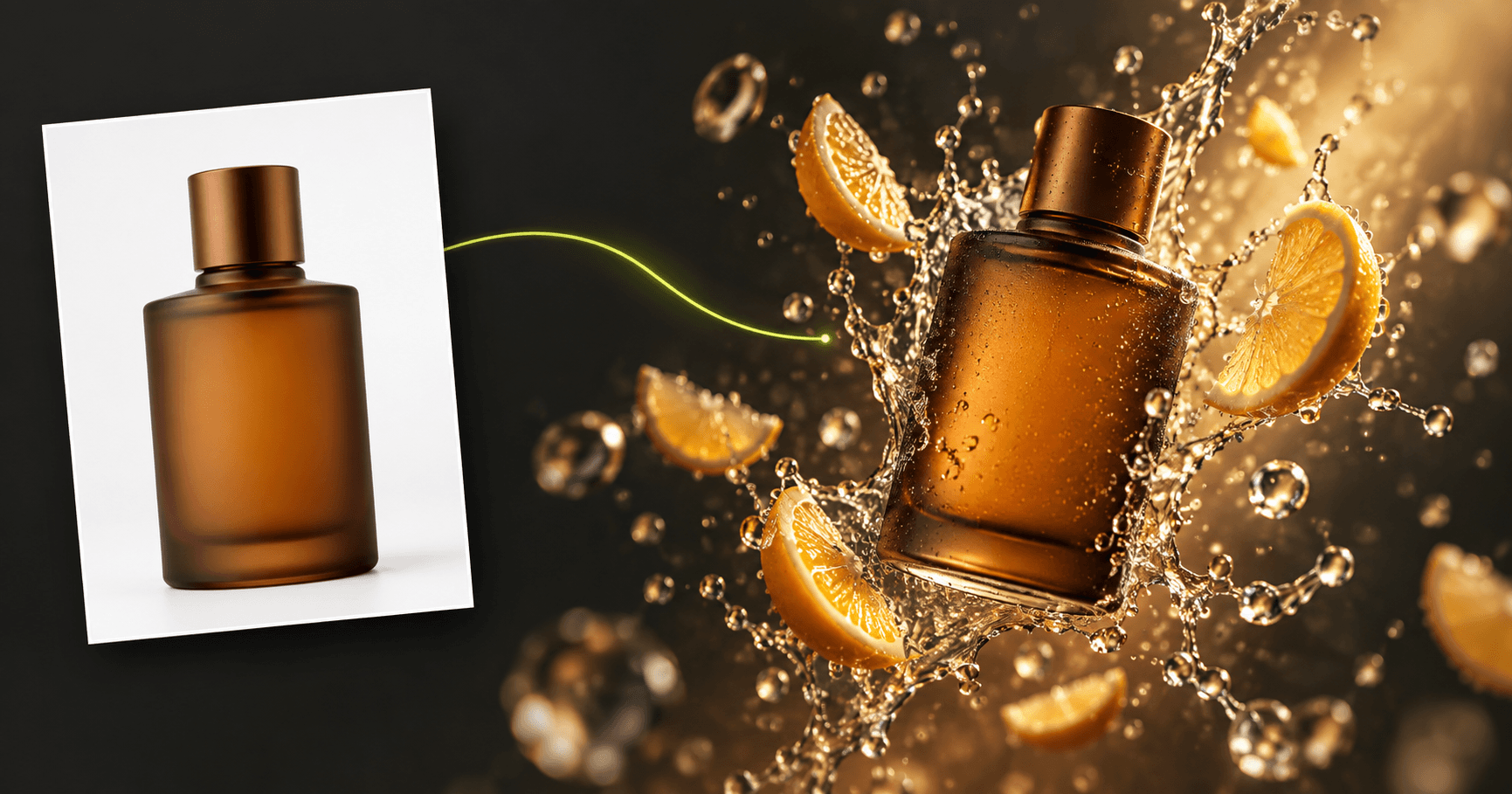
Start with Nano Banana 2.1 when the image depends on a person or product staying recognizable. It supports reference images, so you can attach visual material rather than relying entirely on a written description. This is useful when you have an approved portrait, a particular outfit, or product photography that the result should follow.
It is also the more relevant option to test for recurring characters. The update specifically improves character consistency between frames, and the model is available in Character Lock. If your goal is a sequence rather than an isolated portrait, keep the defining features clear in your instructions: which clothing must stay the same, what changes between scenes, and what should remain untouched. A character generator is useful for establishing the person you want to reuse; this comparison is about choosing the image model for the work that follows.
Better prompt following does not remove the need for a clear prompt. Separate the subject from the action, setting, and camera view. If you change everything at once between attempts, it becomes hard to tell whether a mismatch came from the model, the reference, or conflicting instructions.
When is FLUX 3 the better image model?
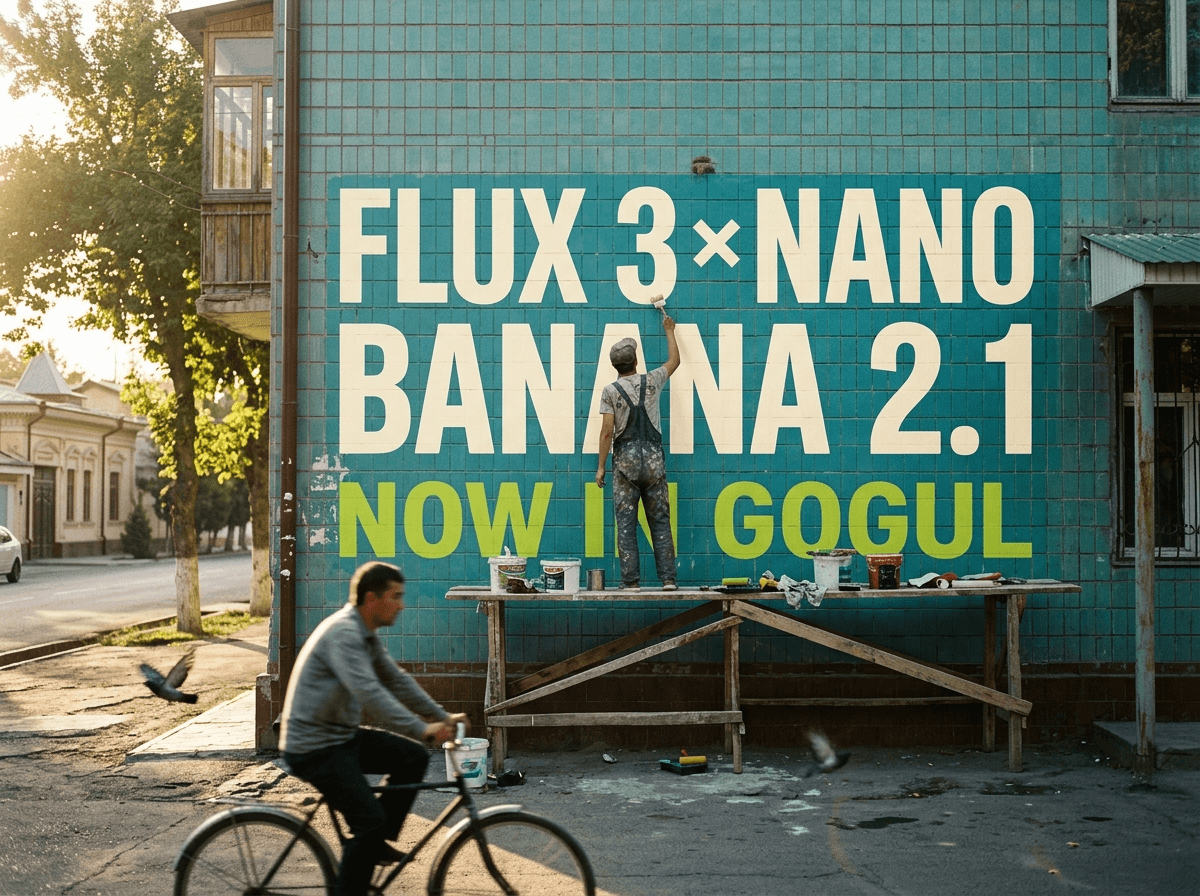
Choose FLUX 3 when composition is the main constraint. For a poster, that might mean a product positioned below a headline with open space for supporting copy. For an ad, it might mean keeping the subject on one side so another element can sit beside it. FLUX 3's strengths include precise layout and clean text, making it a sensible first test for images where those details are visible.
Give it the exact words you want in the image, then describe where each text element belongs. Specify which object should draw attention first and which parts of the frame should stay uncluttered. After generation, read the output rather than judging it only at thumbnail size: a plausible-looking poster can still contain an incorrect letter or an awkward line break.
FLUX 3 accepts reference images, too. Attach one when the visual identity of a product or the look of an existing design matters. If a request needs both a recurring character and tightly arranged poster text, try both models with the same core instructions. Compare the face, the wording, and the placement separately instead of choosing on overall appearance alone.
Which model fits each image task?
Use this as a starting point, not a guarantee. The better result depends on your references, instructions, and what you need to preserve.
| Your task | Start with | Check before using the result |
|---|---|---|
| Put a recurring person into a new scene | Nano Banana 2.1 | Face, hair, outfit, and other identifying details |
| Make related character images for a sequence | Nano Banana 2.1 | Whether the person remains recognizable between images |
| Arrange a headline and product in a poster | FLUX 3 | Exact text, spacing, and placement |
| Create an ad with a defined visual hierarchy | FLUX 3 | Whether the subject and text occupy the intended areas |
| Make a product image from a reference | Test both | Product shape, markings, and composition |
For storyboards, Nano Banana 2.1's availability in Character Lock makes it relevant when character continuity is the deciding factor. If you are planning a sequence of shots rather than selecting an image model for a single result, see the storyboard generator.
What prompts can I copy for posters, products, and characters?
Copy a prompt, swap in your own subject and wording, and generate.
Poster with text (FLUX 3):
Minimalist coffee shop poster, 4:5. Beige paper texture background. Large bold sans-serif headline at the top: "MORNING ROAST". Below it a smaller line: "Fresh every day from 8 am". A single cup of cappuccino with latte art in the center, soft daylight from the left, fine film grain, lots of empty space around the cup.
Product shot (Nano Banana 2.1 or FLUX 3):
Studio product photo, 1:1. A matte white ceramic water bottle with a bamboo lid standing on a light oak table. Soft window light from the right, gentle shadow, clean light-grey background, sharp focus on the logo area, premium catalog style. Keep the product shape exactly as in the reference image.
Character in two scenes (Nano Banana 2.1):
Scene 1, 16:9: the woman from the reference photo, shoulder-length dark hair, yellow raincoat, stands at a bus stop on a sunny morning, smiling at her phone. Scene 2, 16:9: the same woman, same face, hair and yellow raincoat, sits by a café window in the afternoon, writing in a notebook.
Run the scenes one after another with the same reference attached, then compare the face, hair and outfit side by side.
How do I try a model in GOGUL, and what should I know before generating?
- Open Create → Image in GOGUL, or go to the image generator.
- Select Nano Banana 2.1 or FLUX 3 based on the detail that matters most to your task.
- Write your prompt, keeping the subject, layout, text, and any must-keep details explicit.
- Attach reference images if you need the result to follow an existing person, product, or design.
- Choose the available quality and aspect-ratio settings, review the price on Generate, and generate your image.
Available quality settings and reference capacity depend on the model. If you switch models after attaching references, check that the images you intended to use are still selected. The Generate button shows the price before you proceed; see pricing if you want to review plans before testing.
Once the result appears, check it against your brief in order: first the subject, then the layout, then any text or identity details. If one part fails, adjust that instruction and try again rather than rewriting the whole prompt. This makes your next result easier to evaluate and helps you decide which model suits the job.
How to get started
- Open Create → Image in GOGUL.
- Select Nano Banana 2.1 or FLUX 3.
- Write a prompt describing the subject and required details.
- Attach references if needed, and choose the available settings.
- Review the price on Generate before generating.
FAQ
- Is Nano Banana 2.1 available in GOGUL storyboards?
- Yes. It replaces Nano Banana 2 in storyboards and Character Lock as well as in the image generator.
- Can I use FLUX 3 on the GOGUL Free plan?
- Yes. FLUX 3 is available on every plan, including Free.
- Which model should I use for text on a poster?
- Start with FLUX 3 when text placement and layout are central to the design. Check the generated wording carefully before publishing or printing it.
- Can I upload reference images to Nano Banana 2.1 and FLUX 3?
- Yes, both accept references. The number you can attach differs by model, so check the selected model’s reference slots before generating.