AI Product Ads: Make a Video Ad from One Product Photo
Turn one product photo into a short video ad in GOGUL. Learn how to plan the shot, choose a photo-friendly preset, and improve the result without filming.
GOGUL team5 min read
Try it on your own idea in GOGUL.
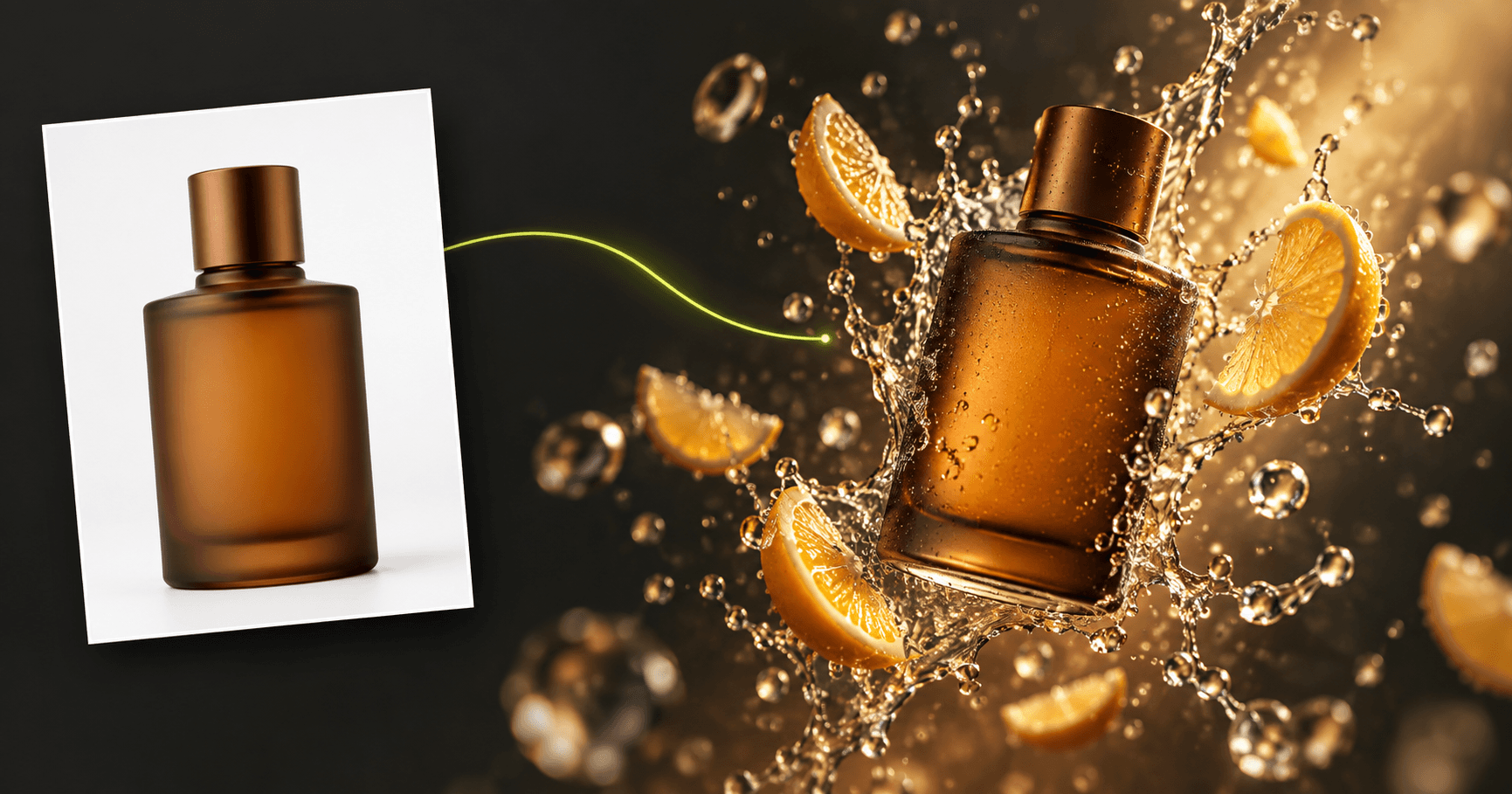
Create a product video adA product photo can show what you sell, but a short video can show how you want people to notice it. With GOGUL, small businesses and marketplace sellers can make AI product ads from a single photo, even without a camera setup. The key is to plan a clear ad before you pick a preset: decide what viewers should notice first, then use motion to draw their eyes there.
Why can short video ads help sell products?
A short ad gives a still product photo a sequence. Instead of asking someone to study an image, you can lead their attention from a detail to the full product, or from the product to its packaging. That sequence is useful when a listing, social post, or campaign placement gives you only a brief moment to make the item recognizable.
Motion also gives you room to set a mood. A slow camera move can suit a watch or skincare bottle; a more energetic reveal might suit a colorful accessory. Neither approach replaces the basics: viewers still need to see the actual product clearly. If an effect hides its shape, label, or important detail, it is working against the ad.
Start with one message rather than trying to show every feature. For example, a seller might want viewers to notice the texture of a bag, the shape of a lamp, or the presentation of a boxed item. That decision makes it easier to judge whether the generated clip is useful, not merely eye-catching.
What does a product video ad need to work?
Think in three beats: a hook, a hero shot, and a clear finish. The hook is the first visual reason to keep watching, such as a close detail or an interesting reveal. The hero shot gives the product an unobstructed moment in the frame. The finish leaves viewers with an image they can connect to the product photo or listing.
Good lighting supports all three beats. Check that the photo shows the product edges, material, and any details buyers use to identify it. A bright reflection across a label or a deep shadow over the main feature may become more distracting once the image moves. If the source photo is cluttered, choose a cleaner one before spending time refining the video.
Keep the motion proportional to the object. A gentle push-in can help show surface detail; a wider camera move can reveal the full silhouette. Avoid asking for several unrelated actions in one short clip. The product should remain the subject, not become a prop in a complicated scene.
How do I make an AI product ad in GOGUL from one photo?
GOGUL's video presets provide ready-made recipes with a prompt template, generation settings, and input slots. Use a recipe that accepts an image so your product photo is part of the generation. Here is a practical first pass:
- Choose a clean product photo with the item fully visible and enough space around it for movement.
- Open GOGUL's video generator and select Presets on the Video page, or open Inspiration → Presets from the sidebar.
- Look for a recipe with an image slot and a visual direction that fits your product. Check its example and required inputs before committing to it.
- Upload your product photo into the image slot, or select it From Library. Fill any other required slots the recipe calls for.
- Choose the available model and aspect ratio options that fit where you plan to post. Review the price shown on Generate, then generate the clip.
- Watch the result with the sound off first. Can you recognize the product immediately, and is its main selling detail still visible? If not, change the input photo or try a less distracting recipe.
The preset card displays a price based on its default settings; the Generate button updates the price for your chosen settings. For plan information, see pricing. If you need a fuller explanation of preset slots and requirements, the documentation covers the workflow.
How do I choose the right video preset for my product?
Choose by the job the ad must do, not by the most dramatic preview. A recipe that moves the camera around the product may help show its shape. A restrained reveal may be better when packaging or a printed label needs to stay legible. For products with fine texture, favor a direction that gives the surface time on screen.
Check what the preset asks you to provide. Some recipes need more than an image; required slots must be filled before Generate is available. If you only have one photo, pick a recipe whose required inputs you can supply rather than trying to force a concept built for different materials. You can filter the catalog by category, model, or title to narrow the choices.
Aspect ratio matters too. Decide where the ad will appear before generating, then choose an available option that suits that placement. Leave important packaging details away from the edges of your source image so the product remains readable in the finished frame.
For example, Product Spotlight puts your item in a dark studio scene with a slow cinematic reveal, while Slow-Mo Drop turns it into a bullet-time moment where the product hangs in the air. Open the preview of each preset to see the motion before you generate.
How can I improve lighting, motion, and results without a video budget?
Improve the input before buying another generation. Put the product where its outline is easy to see, avoid harsh glare, and check that small text is readable in the original photo. A clean photo gives the preset a clearer subject to animate. If you have several existing photos, test the one with the simplest composition first.
Change one thing at a time when a clip misses the mark. If the product looks clear but the movement is distracting, try a different preset. If the motion works but the item looks indistinct, swap the source photo. This makes each attempt informative instead of leaving you guessing which change helped.
Finally, review the clip at the size people will actually see it. Pause near the beginning and on the hero shot: the product should be recognizable in both places. If you want to control the movement yourself rather than use a recipe, GOGUL also offers Image to Video. For the separate task of animating a person's portrait, see the guide to video from a photo of a real person.
How to get started
- Video
- Presets
FAQ
- Can I make a product video ad with just one photo?
- Yes. Choose a GOGUL video preset that accepts an image and check whether it requires any other inputs before you start.
- Do I need to write a video prompt when using a GOGUL preset?
- Presets include a prompt template and input slots. Fill the required slots; what you need to provide depends on the recipe.
- Why is the Generate button unavailable for my video preset?
- A preset cannot generate until all its required slots are filled. Check the open recipe for a missing image, text entry, or other required input.
- How much does it cost to generate a product ad in GOGUL?
- The preset card shows a price based on its default settings, while Generate shows the updated price for the settings you select. Check that button before starting generation.
- What if my product photo does not fit the preset?
- Try a recipe with a visual direction that suits the photo, or choose another image with a clearer view of the product. You can also use Image to Video if you would rather describe the motion directly.